The day plan#
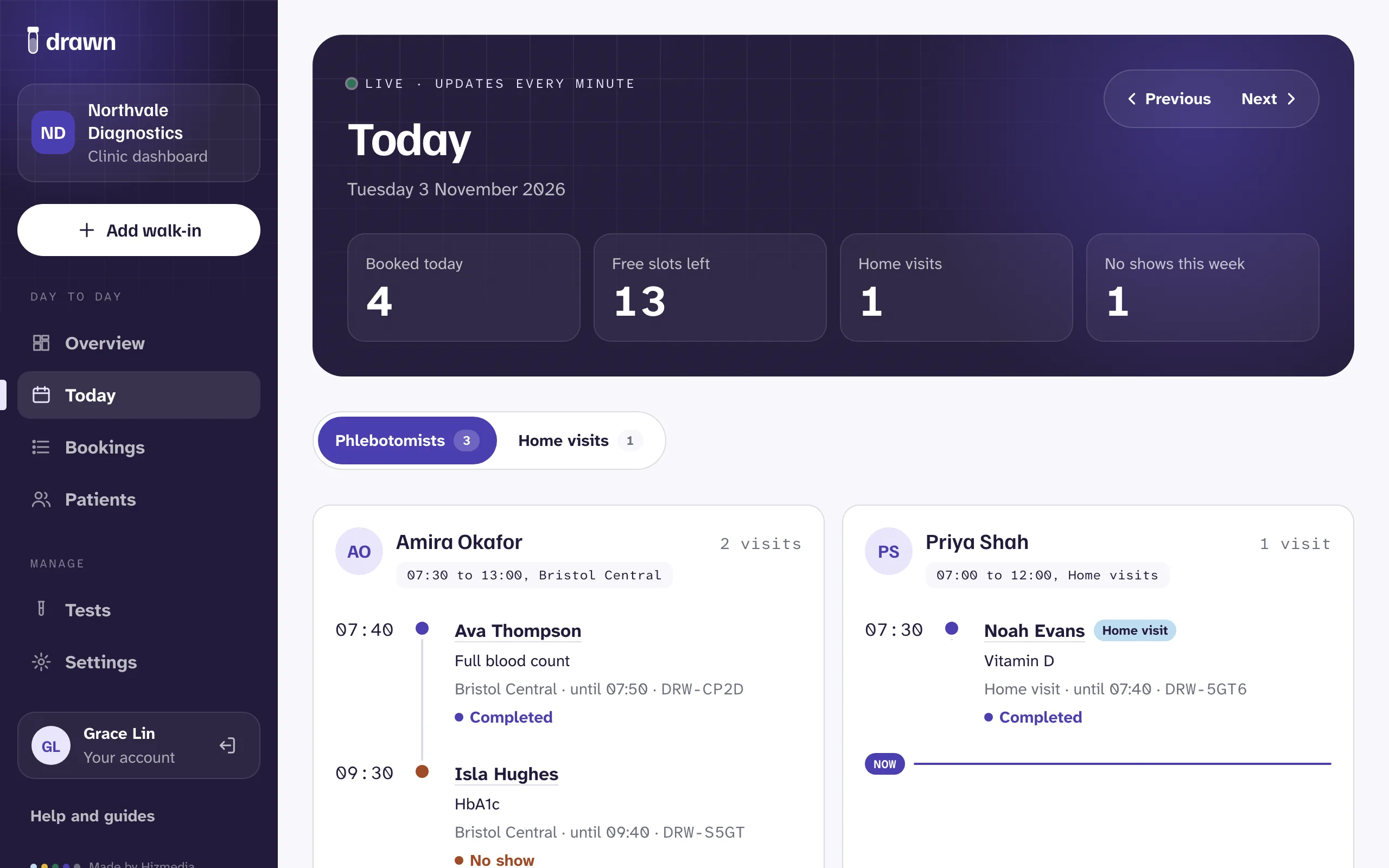
Today shows each person's appointments for the day, in time order, and keeps itself up to date while it's open. Use the dates at the top to look at another day. Phlebotomists see their own day plan.
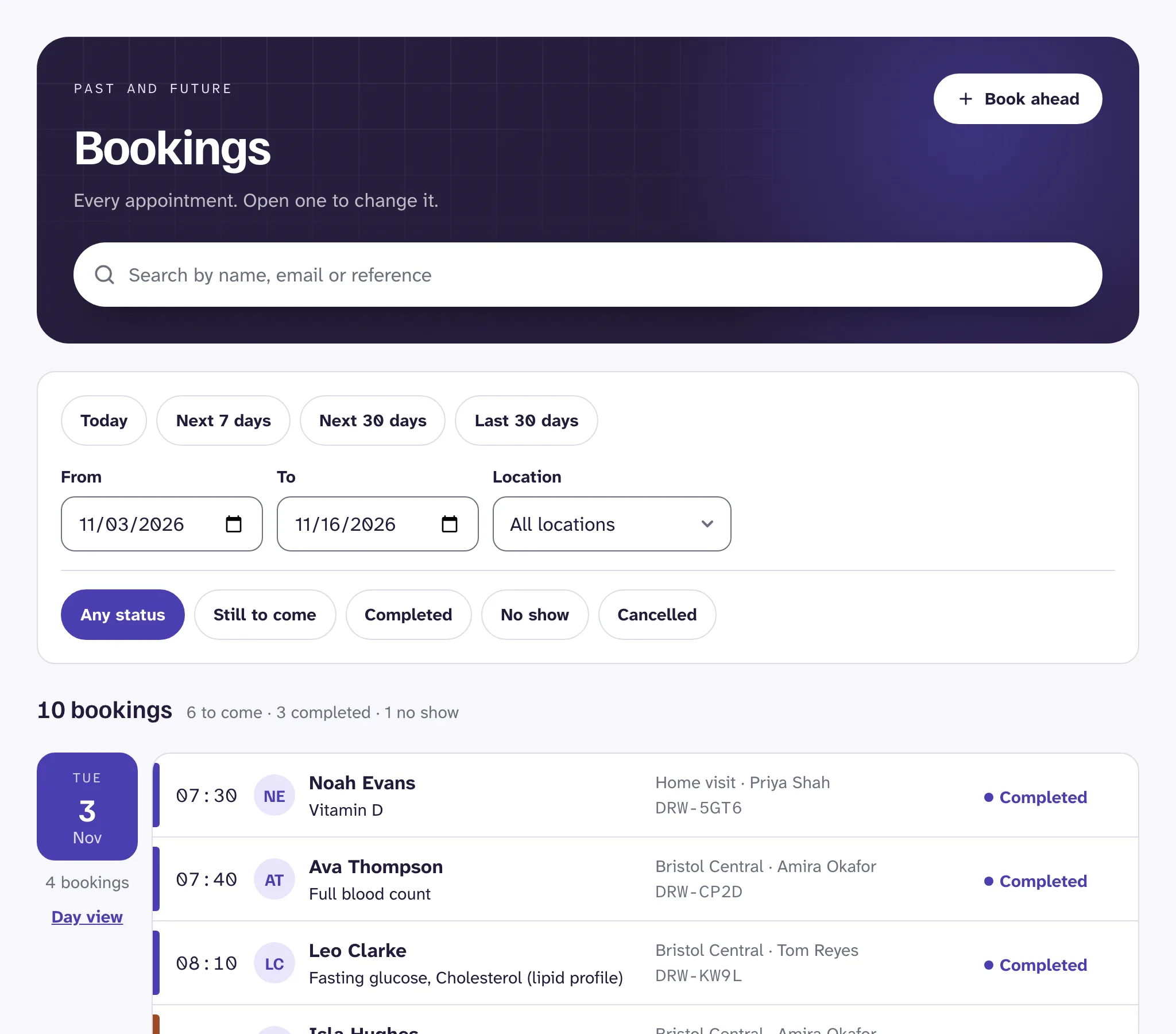
Bookings lists every appointment, past and future. Search by name, email or booking reference, and narrow it down by location, dates or status. Open any booking to change it.
What each status means
- Confirmed
- Booked and coming. Most bookings look like this.
- Pending
- Waiting for the patient to finish paying online. Their time is held for 30 minutes.
- Completed
- The sample was taken.
- No show
- The patient didn't come.
- Cancelled
- Cancelled by the patient or the clinic. The time is free again.
Add a walk-in#
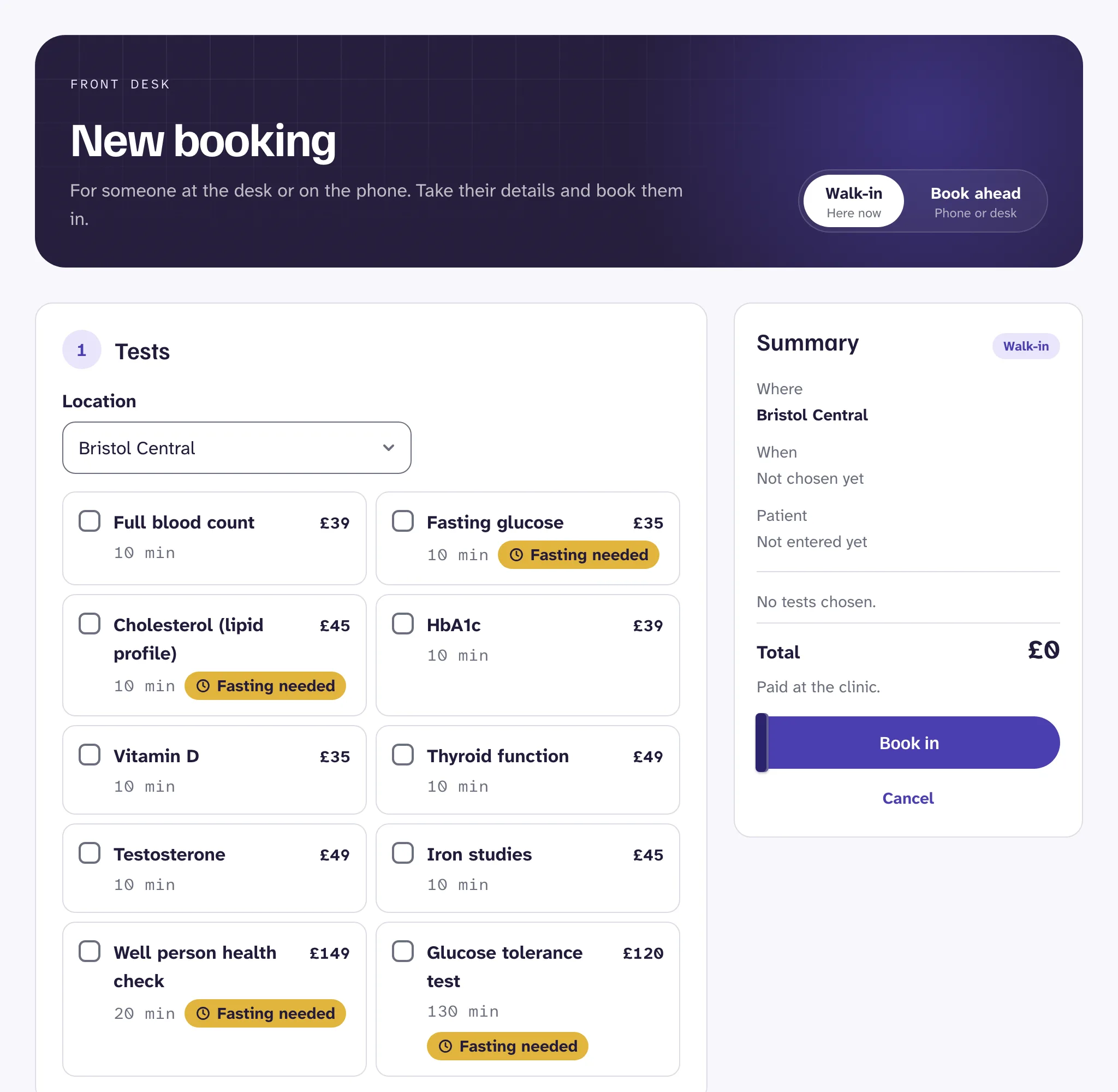
Reception and clinic admins can book in someone who turns up at the desk.
- Press Add walk-in, at the top of the menu.
- Choose their tests. Drawn shows who is free now, or the next free times today.
- Enter their details. If they've been before, use the same name and email, so the visit joins their record. Drawn fills in their details from last time, so you can check them.
- Tick that you've told the patient how the clinic uses their details. Offer them your privacy notice if they want to read it.
- Press Book in. The walk-in shows on Today, and is paid at the clinic.
You can also book someone in for later that day, or for another day, from the same screen. Give them the booking reference.
Completed visits and no shows#
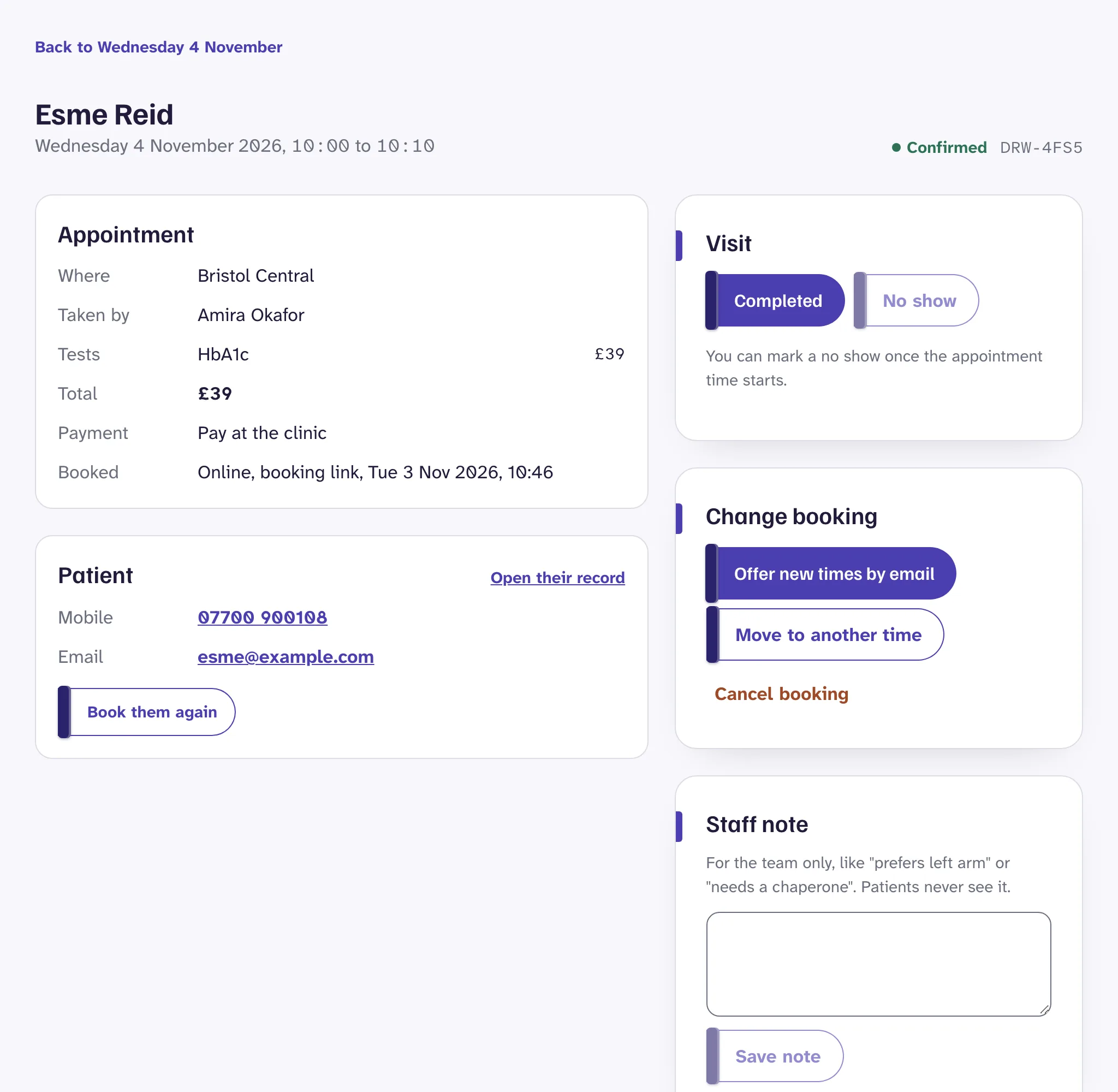
Open the appointment and press:
- Completed once the sample is taken. If you finished early, the rest of the slot opens up for walk-ins and new bookings.
- No show if the patient didn't come. You can mark a no show once the appointment time has started.
Pressed the wrong one? Undo it from the same place. Reception, clinic admins, or the phlebotomist taking the sample can record a visit.
Move or reschedule a booking#
Open the appointment. Under Change booking there are two ways to move it.
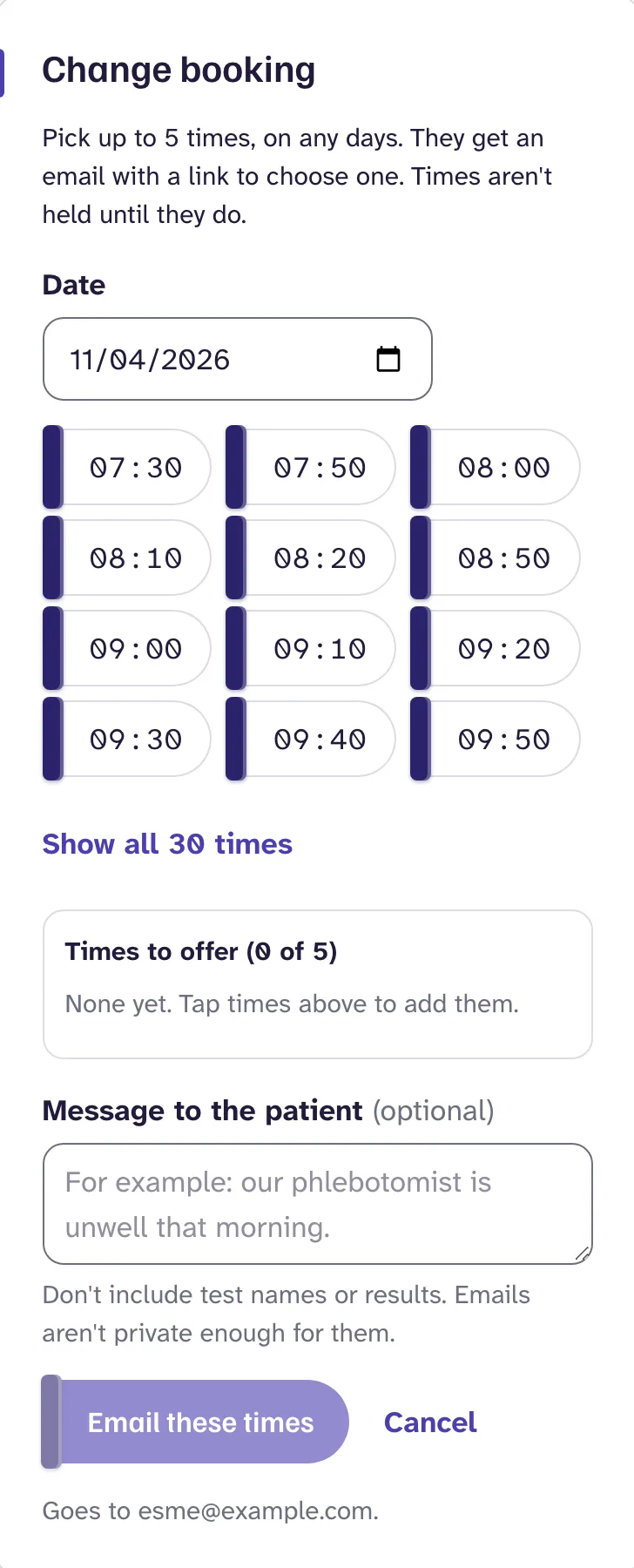
Offer new times by email
Best when you need to move a patient but don't know what suits them, such as when a phlebotomist is ill. Pick up to 5 free times and add a short message. The patient gets an email, chooses one, or keeps their original time.
Until they reply, their booking stays where it is, and the times you offered aren't held, so someone else can still book them. Offers expire after a week, or before the earliest time offered if that's sooner.
Watch out
Move to another time
When you've already agreed a new time with the patient, on the phone or at the desk. Choose the date and time. The patient is emailed the new time.
Cancel a booking#
- Open the appointment and press Cancel booking.
- Choose why it's cancelled.
- If the patient paid online, Drawn refunds them in full. Untick the refund to keep the payment, such as for a late cancellation. You can still refund later in Stripe.
The patient is emailed, and the time becomes free for someone else. Cancelled by mistake? Press Restore booking, as long as nobody else has taken the time.
When patients change their own booking#
Every email a patient gets has a link to their booking. They can move it to another free time, or cancel it, up to your cancellation window before the appointment. You set the window in SettingsClinic details, under Booking rules.
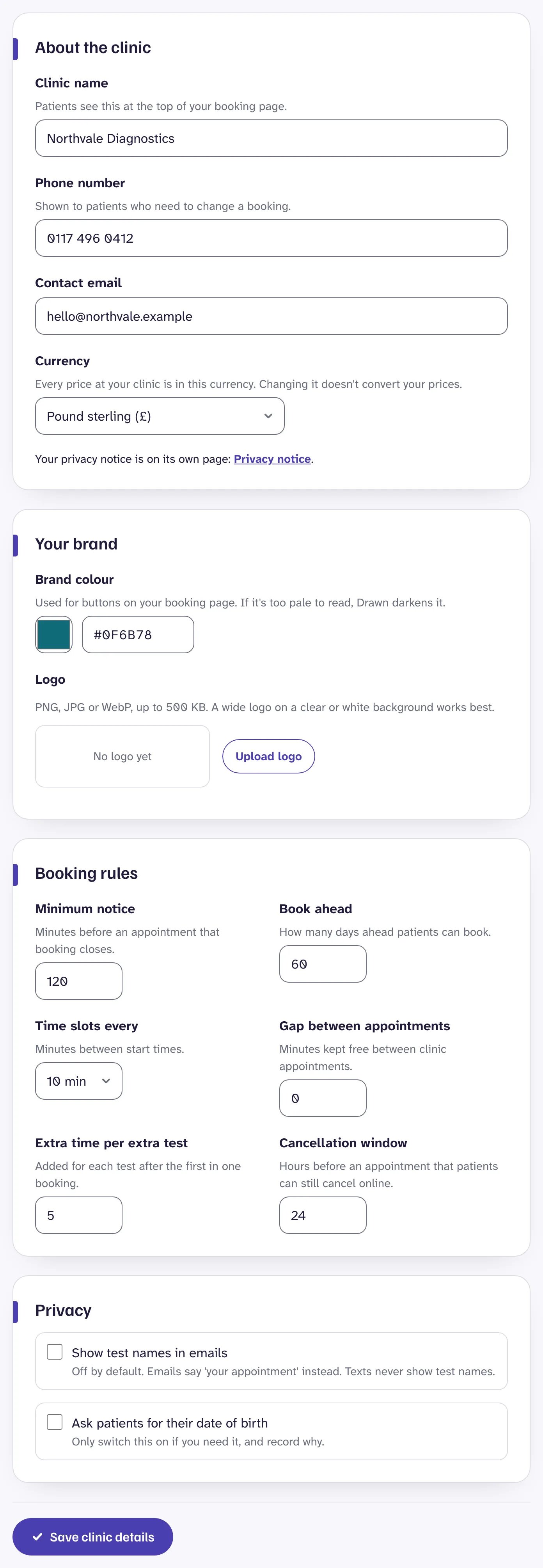
After that, they can't change it online, and the page shows your phone number instead. Patients who paid online and cancel in time are refunded in full. See Taking payment.
Staff notes#
Each appointment has a Staff note for the team, such as "prefers left arm" or "needs a chaperone". Patients never see it.
Still stuck?
Email us and a real person will help. Guides last updated 3 November 2026.