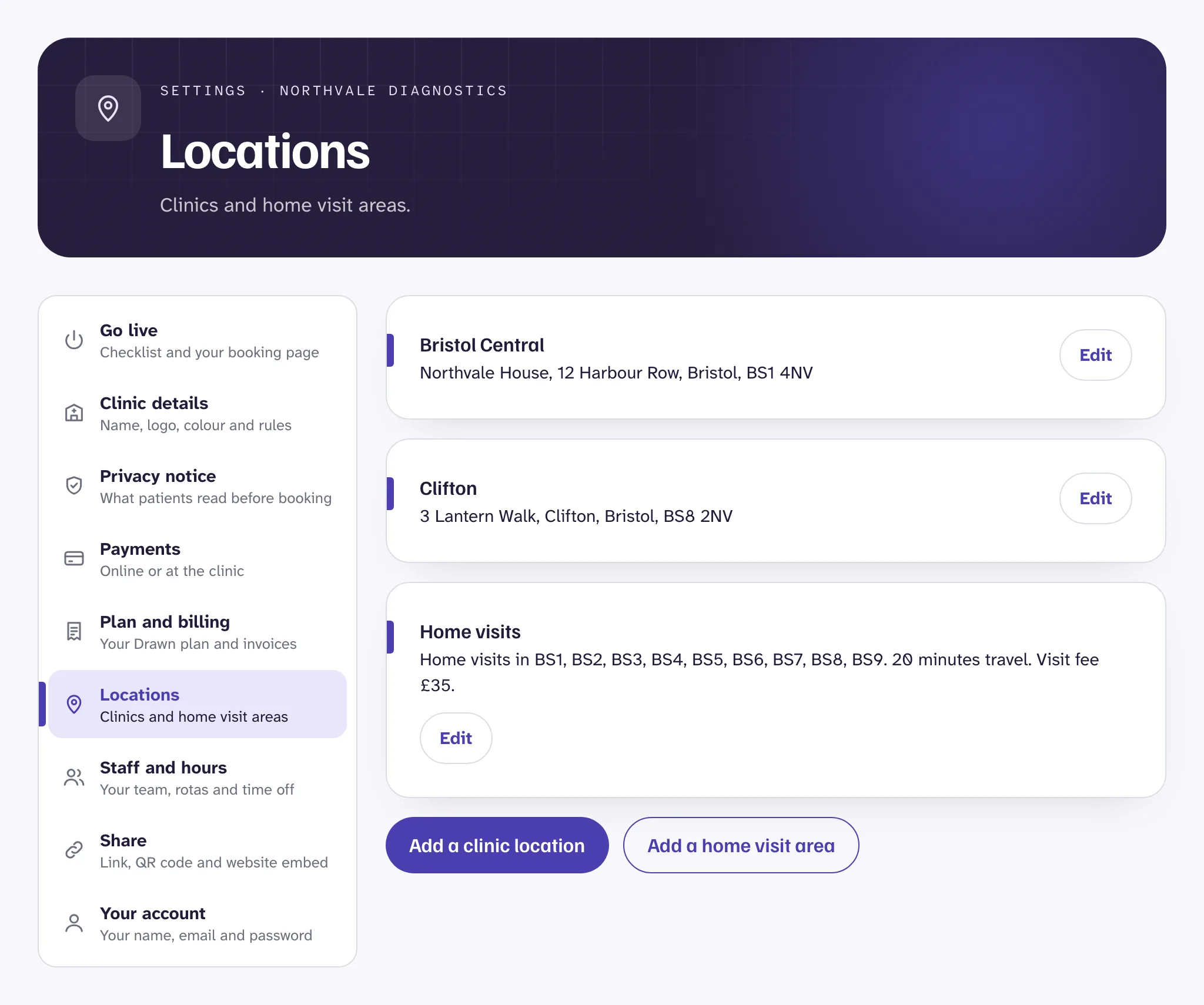
Add a clinic location#
- Open Settings, then Locations.
- Press Add a clinic location.
- Enter the name patients will see, the street address and the postcode.
- Add Accessibility and Parking notes if they help, such as "step free entrance" or "pay and display on the street". Patients see them when choosing where to go.
- Save.
Patients only see times at a location when somebody has weekly hours there. See Staff, roles and hours.
Add a home visit area#
A home visit area is the patch you cover, by postcode. Patients enter their postcode, and Drawn only offers home visits if you go there.
- In Locations, press Add a home visit area.
- Give it a name, such as "Home visits, north Bristol".
- Under Postcode districts you visit, enter the first half of each postcode, separated by commas. For example: BS1, BS6, BS7.
- Set the Travel time: the minutes kept free before and after each visit, so your phlebotomist can get from one home to the next.
- Set a Visit fee if you charge one. It's added once to each home visit booking, however many tests are booked.
Then give whoever does the visits weekly hours in that area, and tick Does home visits on their staff details. Tests need Home visits ticked under Where it can be done to be offered there.
Good to know
Close a location for a while#
Edit the location and untick Taking bookings. Patients stop seeing it, and bookings already made there stay. Tick it again to reopen.
For a single day, such as a bank holiday, it's simpler to add time off for the people who work there. See Time off.
How many locations your plan includes#
- Starter: 1 clinic location, no home visits.
- Clinic: 2 clinic locations, plus home visit areas.
- Group: as many clinic locations and home visit areas as you need.
Still stuck?
Email us and a real person will help. Guides last updated 3 November 2026.