Create your account#
- Go to Start free trial and enter your clinic's name, your name, your email and a password of at least 12 characters.
- Choose I run the clinic and review results if one login should do everything, or I run the clinic, doctors review results if your doctors will have their own logins for reports.
- Accept the terms of service and the data processing agreement. Drawn keeps a record of the versions you accepted.
- Check your email for a six-digit code and enter it. You'll get a new code like this each time you sign in.
Your free trial lasts 14 days and includes everything in the Clinic plan. You don't need a card to start.
The five setup steps#
After you sign in for the first time, Drawn asks five quick questions. You can change every answer later.
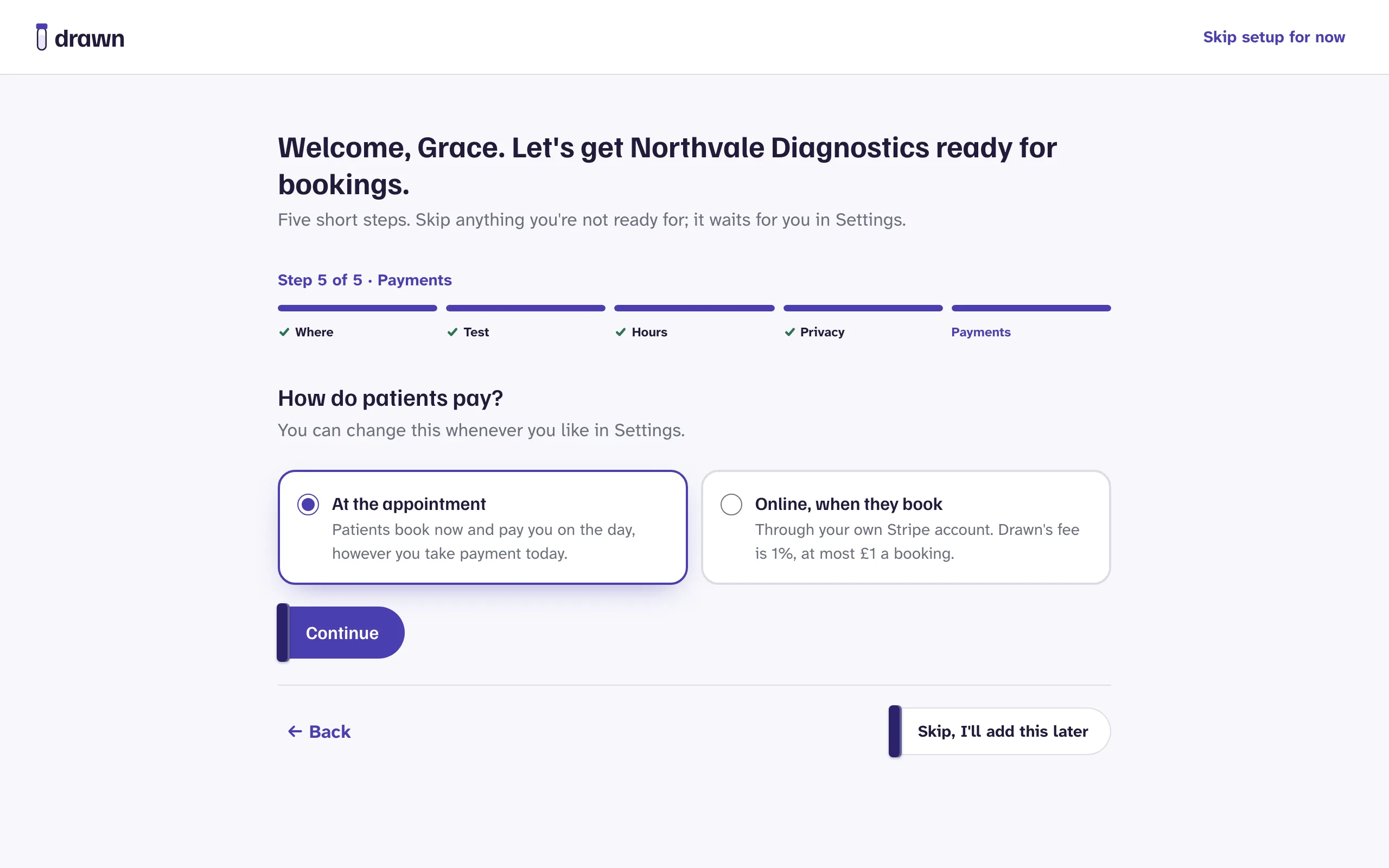
- Where. Your clinic's address, or the postcodes you cover for home visits. See Locations and home visits.
- Test. Tick tests from the ready-written gallery, and add any of your own. See Your test menu.
- Hours. Who takes blood, where, and on which days. Choose yourself or add someone from your team. Patients only see times when somebody is working.
- Privacy. The privacy notice patients read before they book. Start from Drawn's template, paste your own, or link to the one on your website. See Privacy and patient data.
- Payments. Patients pay you at the appointment, or online when they book. See Taking payment.
Make a test booking#
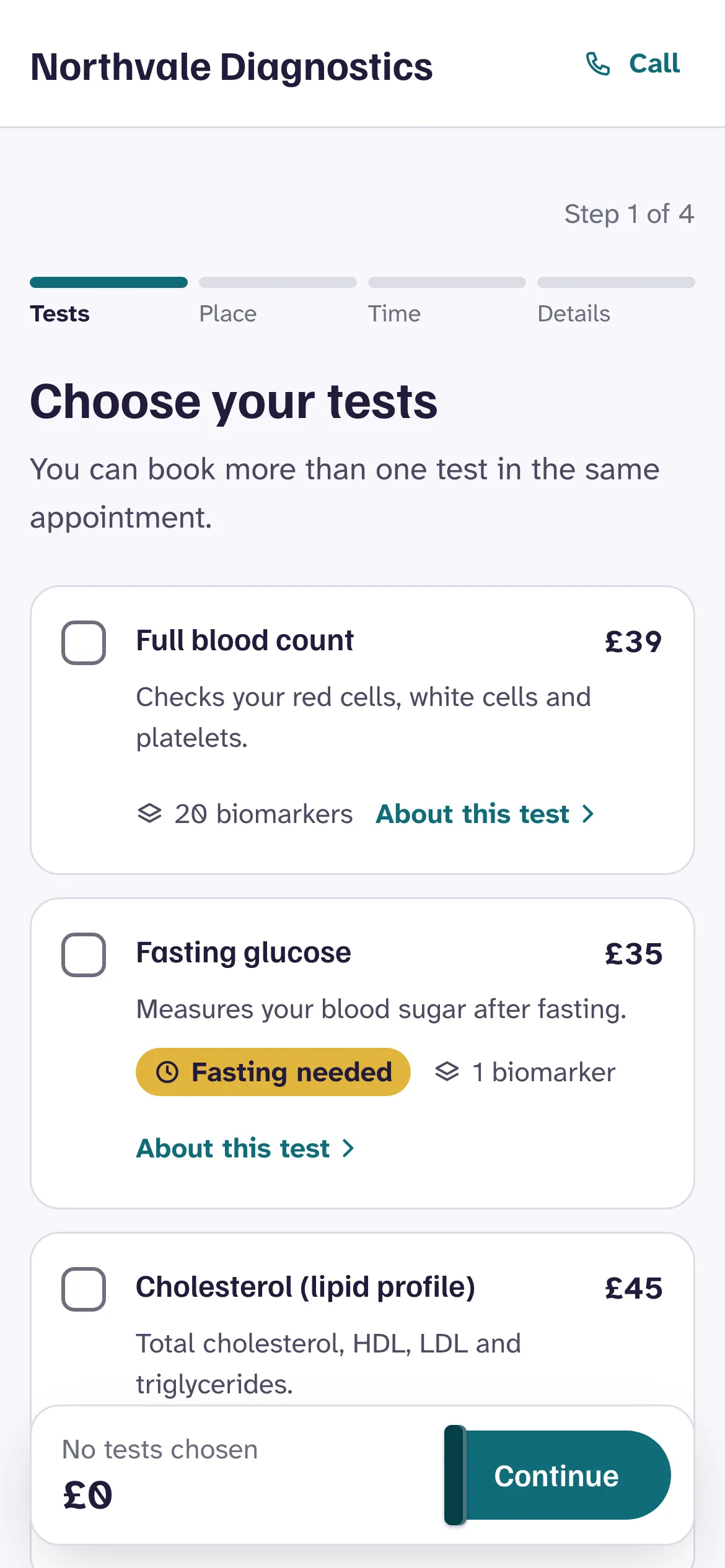
Before you go live, book an appointment the way a patient would.
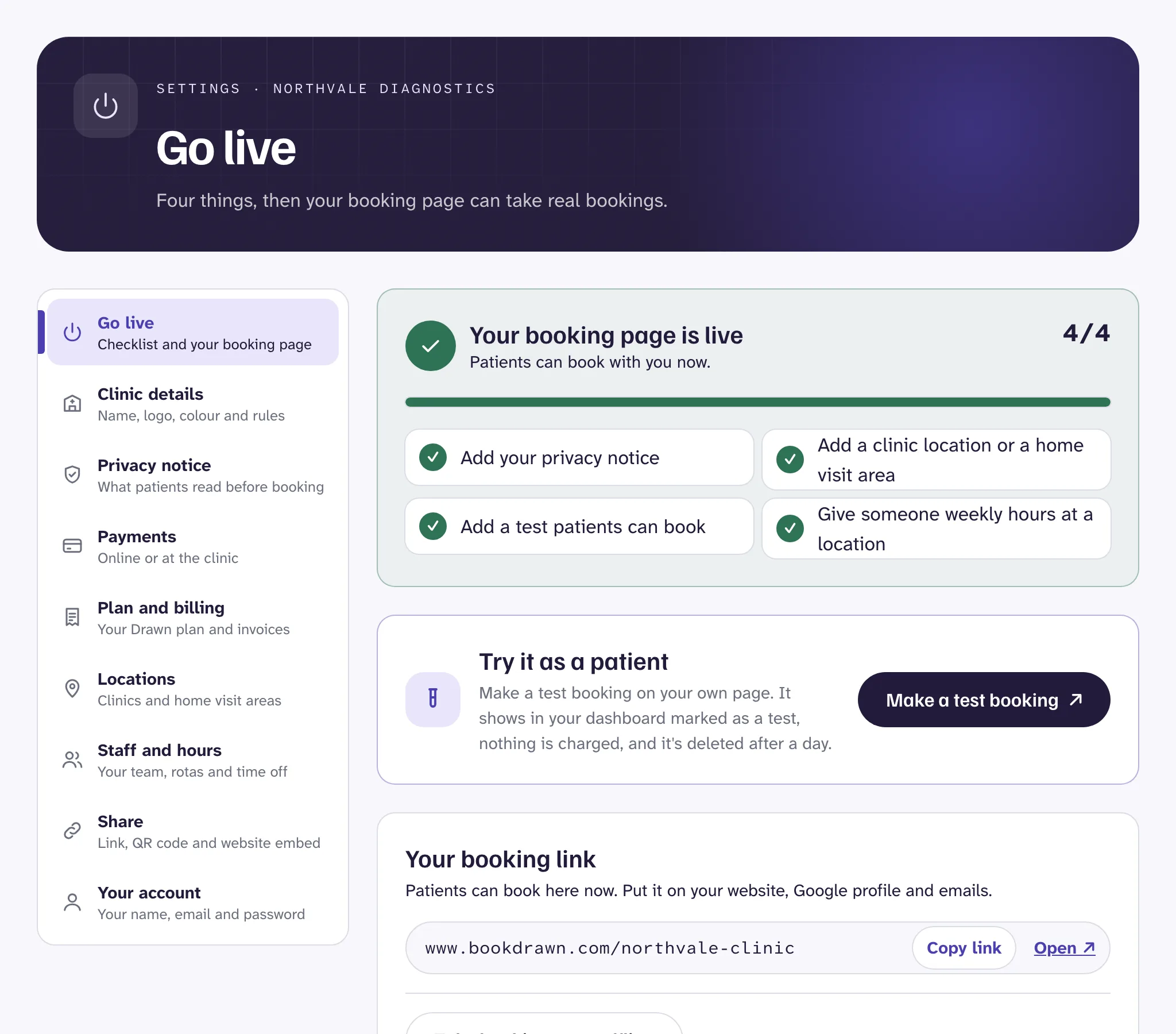
- Open SettingsGo live.
- Press Make a test booking. Your booking page opens in a new tab, even if it isn't live yet.
- Choose a test, a place and a time, and fill in the details.
The booking shows in your dashboard marked as a test. Nothing is charged, and it's deleted after a day.
Go live#
The Go live checklist in Settings shows what's left. Your booking page can take real bookings once all four are done:
- a privacy notice, written in Drawn or linked from your website,
- a clinic location, or a home visit area with at least one postcode district,
- a test patients can book,
- someone with weekly hours at one of those locations.
Then press Go live. Your booking link starts working straight away. Next, put it where patients will find it: see Booking link and QR code and Add booking to your website.
Good to know
Still stuck?
Email us and a real person will help. Guides last updated 3 November 2026.