1. List your websites#
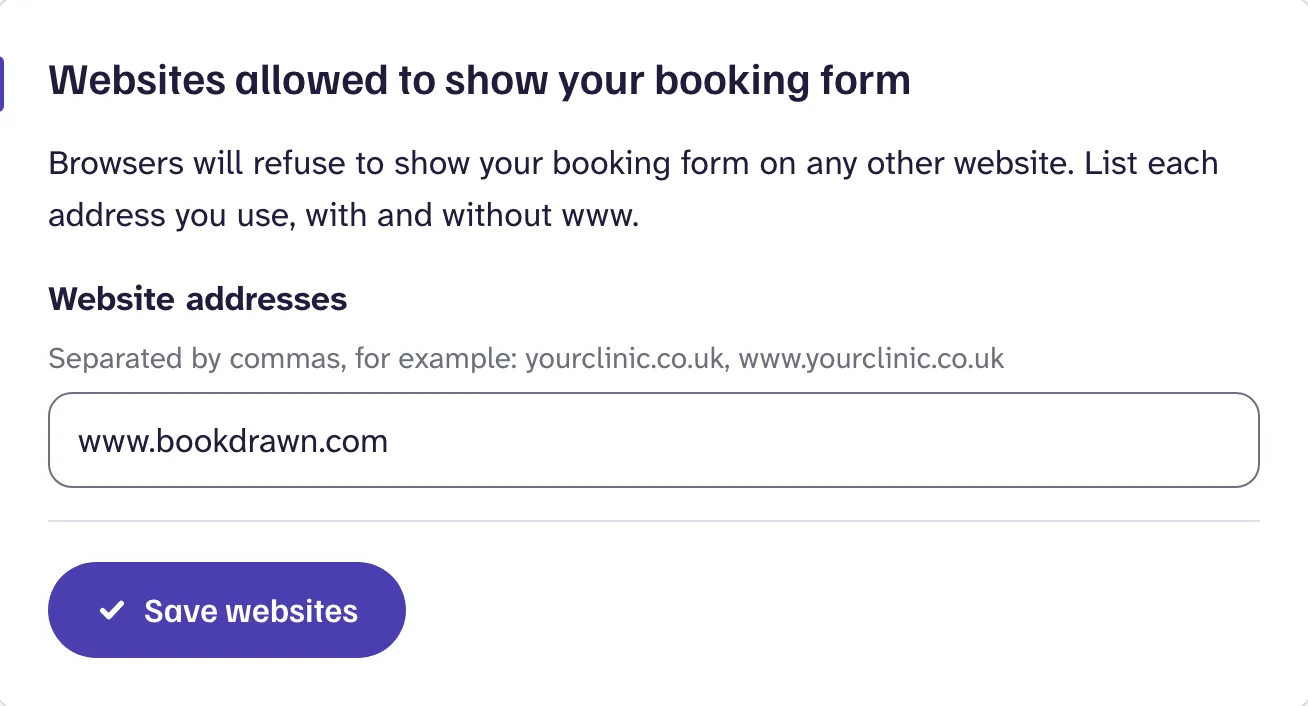
Browsers only show your booking form on websites you've listed. Do this first, or the form won't appear.
- Open SettingsShare.
- Under Websites allowed to show your booking form, enter each address your site uses, with and without www. For example: yourclinic.co.uk, www.yourclinic.co.uk.
- Press Save websites.
Using a website builder's free address as well, such as yourclinic.wixsite.com? Add that too.
2. Copy your code#
Under Embed on your website, choose how it appears. The form grows to fit, so there's never a scrollbar inside it, and pressing the button opens it over the page.
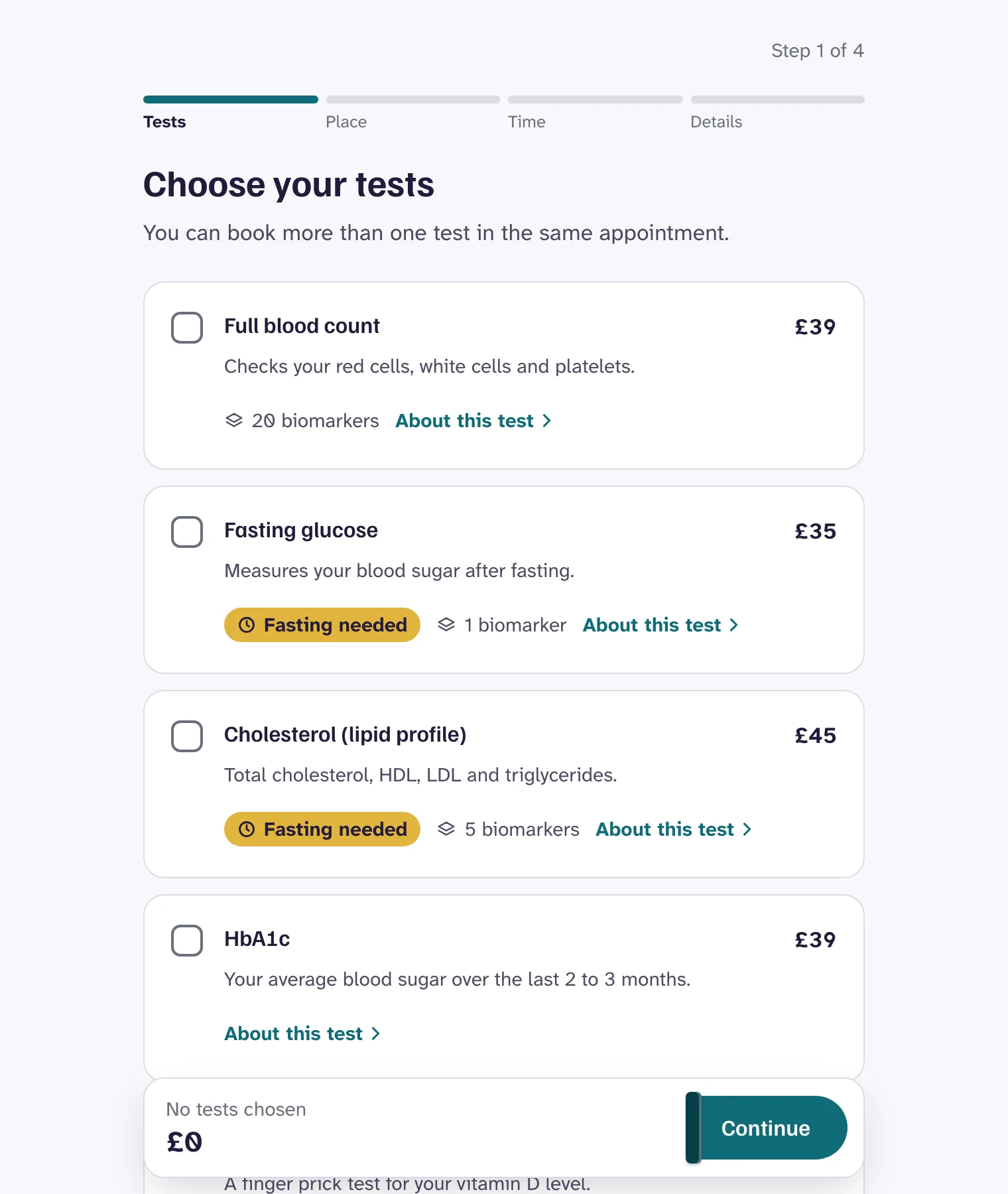
In the page
The whole form sits in your page and grows to fit. Best for a "Book a test" page.
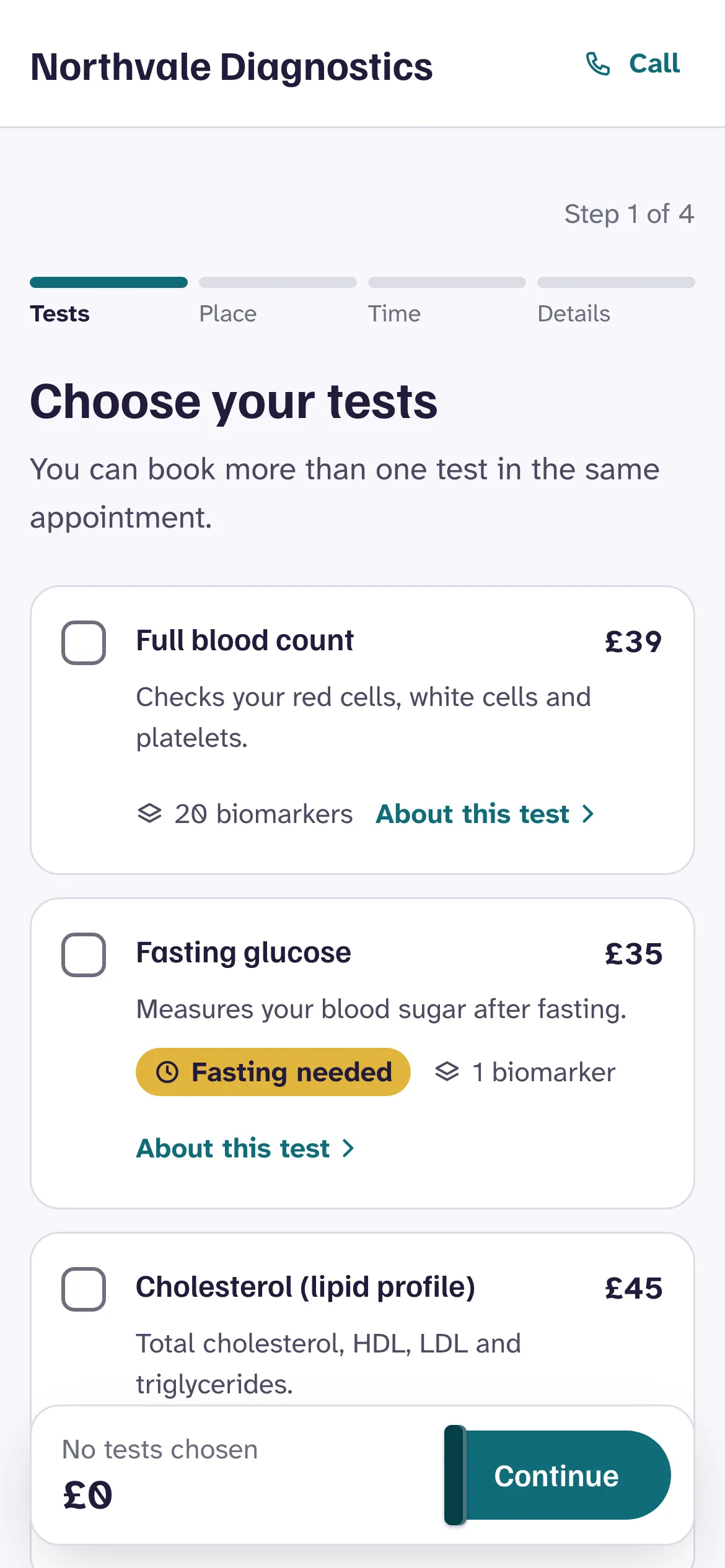
A button that opens it
A button in your brand colour opens the form over the page. Best for a home page.
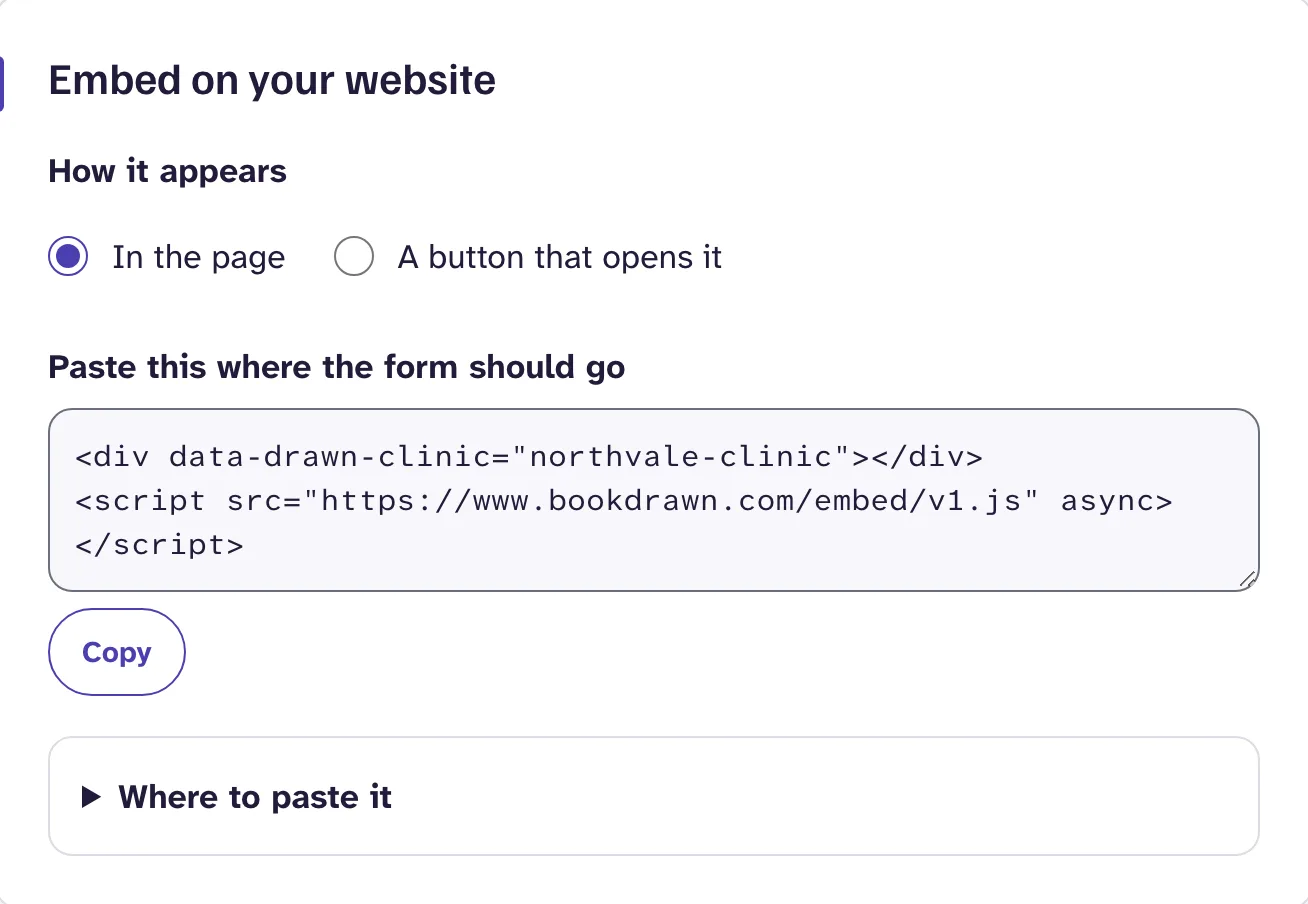
Then press Copy. Your code looks like this, with your clinic's own name in it:
<div data-drawn-clinic="your-clinic"></div>
<script src="https://www.bookdrawn.com/embed/v1.js" async></script>
3. Paste it into your website#
Paste the code where you want the form or button to appear, using your website's HTML or code block. There are exact steps for WordPress, Wix, Squarespace, Webflow and Shopify in WordPress, Wix and others.
Publish the page, then open it in a private browser window to check. Once your booking page is live, there's also a live preview at the bottom of the Share screen.
Good to know
Change what it shows#
The Share screen writes these for you when you choose a test, a location or the button. You can also add them to the first line of the code by hand.
| Add this | What it does |
|---|---|
data-drawn-test="full-blood-count" | Opens with that test chosen. Use the name from the test's own booking link. |
data-drawn-location="bristol-central" | Opens at that location. |
data-drawn-mode="popup" | Shows a button that opens the form, instead of the form itself. |
data-drawn-button-text="Book now" | The words on the button. "Book a blood test" if you leave it out. |
You can put more than one form or button on a page. Add a line like the first one for each, and the script line once.
Count bookings in your analytics#
When a patient finishes booking, the form sends a drawn:booked event to your page with the booking reference, and nothing else. No patient details ever reach your website. Whoever looks after your website can pass it to your analytics, for example:
<script>
  document.addEventListener("drawn:booked", function (event) {
    // event.detail.reference is the booking reference, such as DRW-7K3P
    window.gtag && gtag("event", "booking_complete");
  });
</script>
If the form doesn't appear#
- Is your booking page live? Check Go live in Settings.
- Is the website listed? The address in your browser's address bar must be on your list exactly, including or leaving out www.
- Is the code whole? Some editors cut off the script line, or turn the quotes into curly ones. Paste it again into an HTML or code block, not a text block.
- Does your site block outside scripts? Some cookie banners and security settings hold back scripts until a visitor agrees. Ask whoever looks after your website to allow scripts and frames from www.bookdrawn.com.
- Still stuck? Use your booking link on a button instead. It works anywhere. See Booking link and QR code.
Still stuck?
Email us and a real person will help. Guides last updated 3 November 2026.